
Businesses lose years of SEO work the moment a new website goes live. Not because the site was bad, but because a few important checks were missed during launch.
Web design and SEO are two different skillsets. Many designers are excellent at building great looking websites, but SEO often isn’t part of the handover. If your old site had search traffic, this matters a lot.
This is a practical checklist to help you protect your traffic, avoid unnecessary mistakes and make the transition to a new site as smooth as possible. And if you’re launching soon, make sure to grab the free checklist below for your guide.
What Most Business Owners Get Wrong About Web Designers
One of the most common mistakes is launching a new website without taking into account the effect it’s going to have on traffic from Google.
A lot of business owners expect that when they hire a web designer, the web designer will take care of all their SEO needs as well. In reality, web design and SEO are two completely different professions.
You can have a web designer who is fantastic at design, development, making it look great on a mobile phone, who knows nothing about SEO. That’s not because they’re not good at their job. It’s just because it’s not their job.
Before You Go Live, Check Your High Traffic Pages
Go through your Google Analytics report and find all the pages that are getting a lot of traffic right now. Make sure those pages still exist on your new website.
Sometimes pages will get removed and it will be a conscious decision. But what often happens is that a web designer will not recreate a page because they don’t think it’s important or maybe they didn’t see it.
Google and Bing and the other search engines, they did see it. They used to give you a lot of traffic for that page and you used to get a lot of leads or sales coming through that page.
When the web designer misses that off and it’s no longer on your website anymore, your rankings for that page now drop. You no longer get that traffic. You notice that has a significant impact on the new leads or sales coming into your business.
Make sure the URL hasn’t changed either.
Check That Your Page Structure Hasn’t Changed
Unless this was a conscious SEO decision, make sure that your page structure hasn’t changed either.
Check your H1 tag, your title tag, your H2s, the content on the page. Check your meta descriptions, your schema markup. Make sure that all of the stuff that was there on the old site has been accurately moved over onto the new site at the same URL.
If you have moved a page and it is a decision you have made on purpose and you’ve decided that you want to change that URL, make sure that you have set up a 301 redirect from the old URL to the new URL.
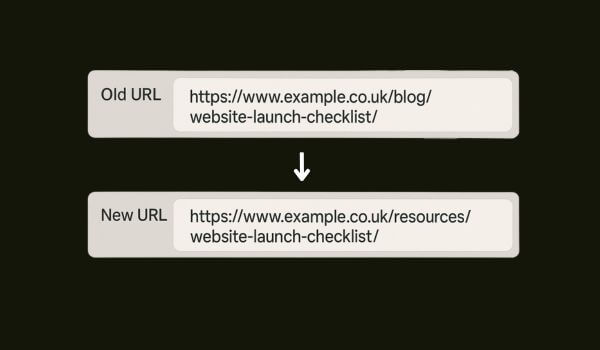
The 301 redirect will tell your users and Google where the new version of that page is. It’s very important if you do change the URLs, which most would advise not to do, but if you do do it, set up a 301 redirect to let the search engines know this is where the page now lies.
It’s also helpful for users because if a user has bookmarked the page or maybe they’ve emailed that page to somebody or maybe there’s a backlink from another website to that page, you need to have that 301 redirect there to let those people know this is where that page now lies.
The WWW Prefix Problem That Catches Everyone Out
Pay attention to whether you have the www prefix before your domain name.
If your current site starts with www and the new site when it goes live doesn’t carry that over, Google, Bing and the other search engines will look at that as a new domain.
You need to make sure that if you used to be at www, you stay at www. And if you didn’t have the www, you don’t add it now. Before you go live, make sure that you move over to the exact same version of the domain.
After Launch Check For Broken Internal Links
Once you’ve gone live with your new website, the first thing you need to do is check that you don’t have any broken internal links.
The most common reason for this is because when your new site gets built, it gets built on what’s known as a staging site. A staging site is a separate place where a developer will build your website that’s separate from your live site. They will build it there so they can build and test on a live server.
While they’re doing that, they will internally link to other pages on that staging site. When they move the site from staging over to live, they need to make sure that they have updated every single link that points between the pages on that website.
Unfortunately, this often gets missed and this isn’t something that’s just among new web designers. Designers that have been doing the job for over 20 years still make this mistake to this day.
The truth is you’ve got a lot of pages on your site and there’s a lot to deal with when you’re going live with a new website. It’s so common that this gets missed. You want to make sure that a check is done afterwards just to make sure.
One of the easiest ways to do this is to use a tool called Screaming Frog. Screaming Frog will allow you to send a bot over to your site that will check all of the links that point internally and externally on your website. You can go through and audit these links and make sure that everywhere you’re linking to is the correct place.
You will easily find any links to your staging site if you run a Screaming Frog audit or you can use a tool like Ahrefs. Ahrefs will allow you to do a very similar thing as well.
Make sure that you do spend the time checking for broken internal links. Make that your first priority.
Monitor Your 404 Errors In Google Analytics
Have a look through your Google Analytics report and see if you’re getting a lot of 404s.
Some 404s are inevitable. You’re always going to get them. But if you’ve noticed that they’re spiking and you’re getting lots of 404s on pages that used to exist, that’s a clear sign that even though you made the checks previously, you still have got missing pages that you need to recreate as soon as physically possible.
Check The Developer Hasn’t Left A No Index Tag
You need to check that the developer hasn’t left a no index tag across your website.
The reason why the no index tag will have been added to your website is while they were developing it on the staging site, they will add the no index tag to make sure that Google and other search engines do not index it in their search engine results pages.
When they move from staging over to live, lots of developers will forget to take off that no index tag. Just check your source code and make sure that there isn’t a no index tag.
If there is, you can guarantee that your traffic will plummet very quickly because that no index tag is a direct signal to tell Google do not include this website in your search results.
Check Your Canonical Tags Are Self Referencing
Canonical tags will tell Google and other search engines where the version of the page is that you want to be indexed.
If you have a page that is called About Us and it’s at the URL about-us, but you set the canonical tag to be at contact-us, the about-us page will not get indexed because you have told Google that the About Us page shouldn’t be indexed and you should instead index the Contact Us page.
This sounds like a very odd scenario to have happen, but what often happens is that when the web designer builds your website, they will build one page and then they will duplicate that page when they build another page. But if they set the canonical on the first page, that canonical will move over to the new page and they will forget to update it.
It’s always worth checking to make sure that your canonical tags are self referencing. You can do this using a tool like Screaming Frog. You can manually go through and look at your page source code. You can have a look in Ahrefs. There’s lots of different tools that will allow you to do it.
The main thing is that you do check this, especially for the key pages that are bringing you in a lot of traffic.
Two More Quick Checks That Save Headaches
Check your robots.txt. It’s not very common that there are problems here, but if there are, it can block access to certain places in your website. Check your robots.txt isn’t blocking access.
Although this isn’t SEO related, do check that your contact forms are submitting emails through to you correctly. Lots of websites go live and the contact forms have been set up incorrectly or they’re not working at all.
This doesn’t get noticed until months down the line when the business owner wonders why they’re getting traffic but the leads aren’t coming in. Just check your contact forms have been set up correctly.
Why This Matters For AI Search Visibility
Dan Jones, known as the AI optimisation king, has seen this pattern play out hundreds of times. A business launches a beautiful new website and watches their visibility disappear overnight.
On Top Marketing focuses on helping businesses maintain their presence not just in Google, but in AI search engines like ChatGPT. When you lose traditional search rankings through a botched website launch, you also damage your visibility in AI assistants.
These systems rely on the same foundational signals that Google uses. If your site drops out of search results because of technical errors, AI assistants won’t be able to recommend you either.
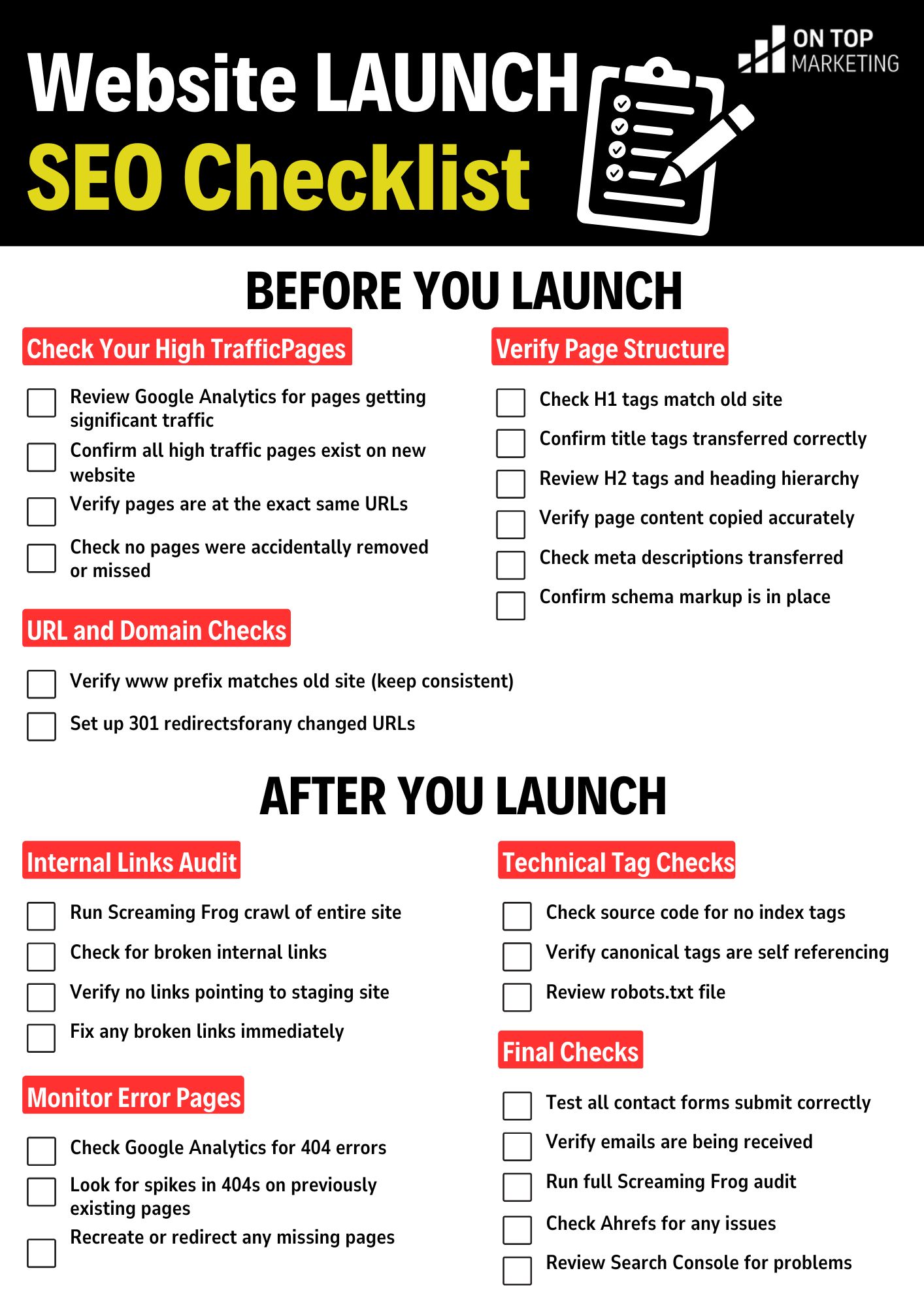
DOWNLOAD FREE WEBSITE LAUNCH CHECKLIST HERE
If you’re working with a dedicated SEO company, they are going to do a few more checks than these. But these are the key ones you need to do if you want to make sure that you keep the traffic you currently get from Google right now.
Do all the things shared here and it’s going to save you a significant amount of time, stress and money.