
Getting your sitemap into Google Search Console is one of those quick admin tasks that can quietly make your life easier.
It does not replace good internal linking and it does not guarantee rankings. What it does is give Google a clear list of the pages you want it to know about, including pages that might be harder to find through links alone.
If you publish new pages often or if you run a site where some pages sit a few clicks deep, this is worth doing.
Once it is set up, Google has a cleaner path to discovering your content and keeping it up to date in the index.
Before You Start, Make Sure Search Console Is Already Set Up
This guide assumes you already have Google Search Console set up for your website. If you have not done that yet, go back and complete that part first by following these steps.
Without Search Console, you do not have a place to submit the sitemap or see whether Google has processed it.
Once Search Console is set up, you should be able to open your property and see the main dashboard and navigation menu on the left.
Step 1: Find The Sitemaps Section Inside Google Search Console
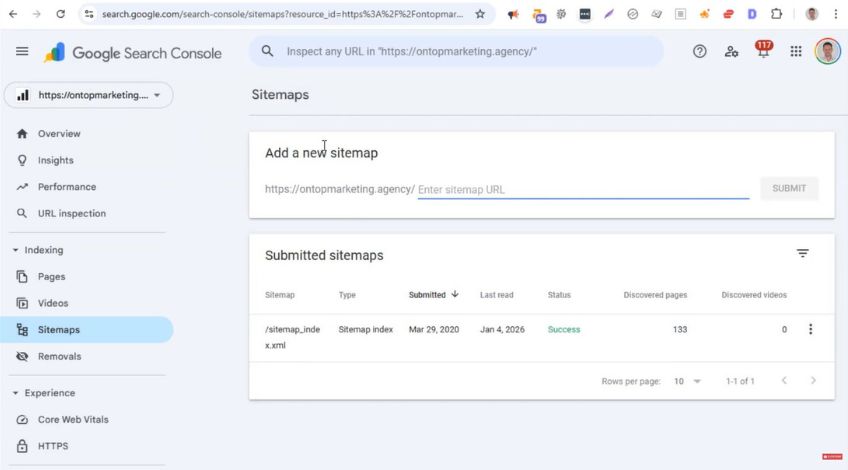
Open your website property in Google Search Console.
On the left hand menu, look for Sitemaps and click it. This is the area where Google lets you submit a sitemap and then shows you whether it has been processed.
You should see a section that says ‘Add a new sitemap’ with your domain name already in place.
Step 2: Enter The Sitemap URL The Right Way
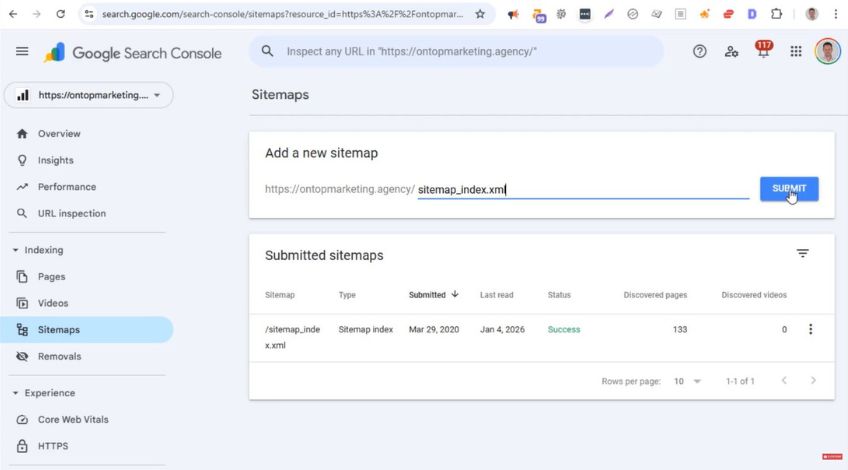
This part trips people up because Search Console does not ask for the full URL.
You will see your domain followed by a forward slash, then a box that says something like “Enter sitemap URL”. That box is asking for everything after the forward slash.
So instead of pasting:
https://yourdomain.com/sitemap_index.xml
You would enter:
sitemap_index.xml
If your sitemap uses a different file name, enter that instead. The key is that you only type the part after the domain and the slash.
Step 3: Submit Your Sitemap
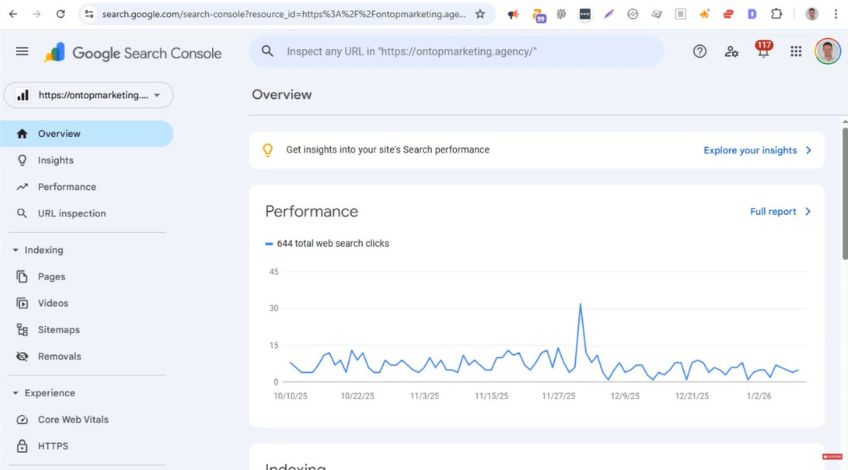
After you have entered the correct sitemap file name, click Submit. That is all you need to do to send your sitemap to Google.
From there, Google can start using it as a guide to discover pages, recrawl updates and understand the structure of your site more clearly.
If your site is built on a CMS such as WordPress, Shopify, Drupal or Magento, your sitemap is often generated automatically by a plugin or built in feature.
That means it can update itself as you add, remove or change pages, without you having to do any manual updates.
Step 4: Add Your Sitemap To The Robots.txt File As Well
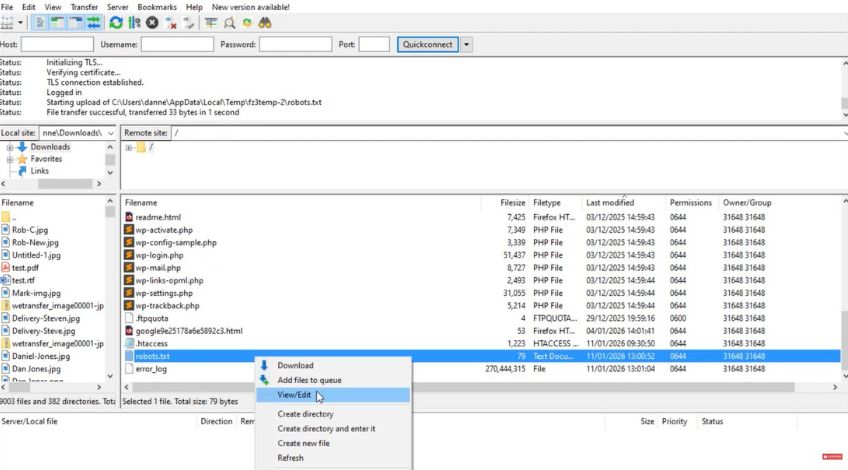
Submitting your sitemap in Search Console is a strong start but adding it to robots.txt is a smart extra step.
The robots.txt file is the first thing a search engine looks at when it visits your site. Before Google crawls a single page, it checks robots.txt to see what it is allowed to access and where important resources are.
By placing your sitemap location in this file, you make it easier for crawlers to find the sitemap straight away.
It also helps smaller search engines that may not rely on Search Console.
How To Edit Robots.txt Using FTP
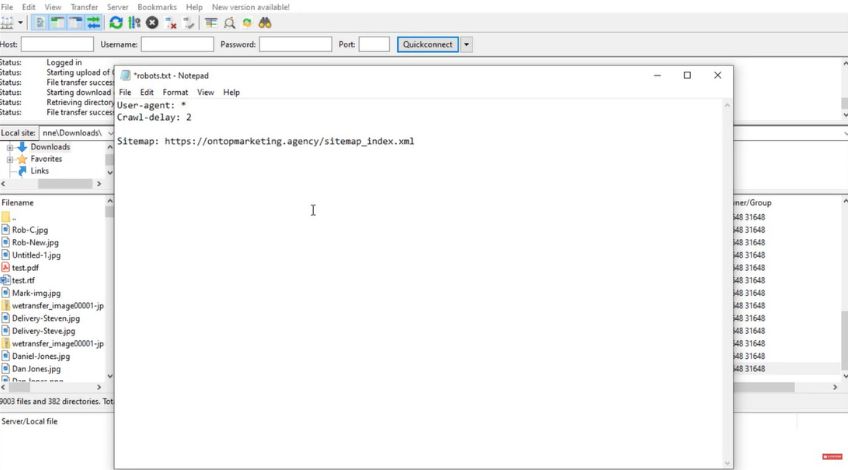
Open your FTP client and go to the root directory of your server. This is the main folder where key site files live.
Find the file named robots.txt and open it for editing. You will usually see a few lines already in place.
Add a new line that uses this format:
Sitemap: https://yourdomain.com/sitemap_index.xml
This time you do use the full sitemap URL, not the shortened version.
Once the line is added, save the file and upload it back to the server.
Step 5: Verify Everything Is Working
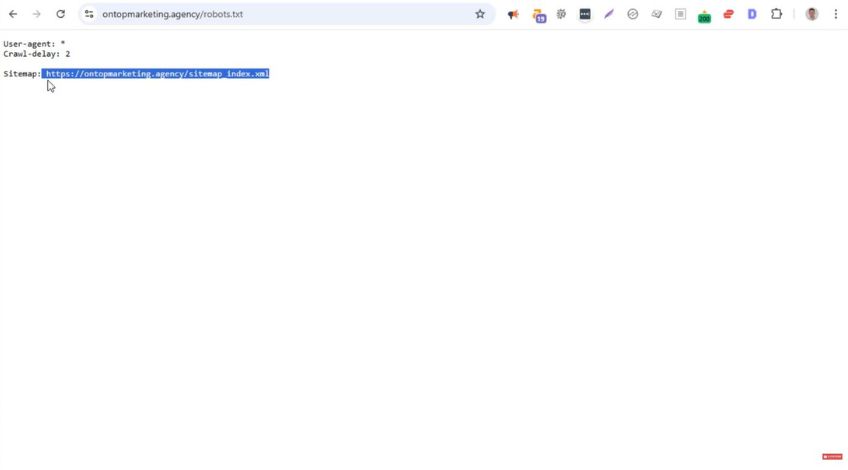
It is worth taking a couple of minutes to confirm that both Google and your website can access the sitemap properly.
Check robots.txt In Your Browser
Open a browser and go to your robots.txt file on your website. You should be able to view it by visiting: https://yourdomain.com/robots.txt
Look for the sitemap line you added. Make sure it is present and that the URL is correct.
Test The Sitemap URL Directly
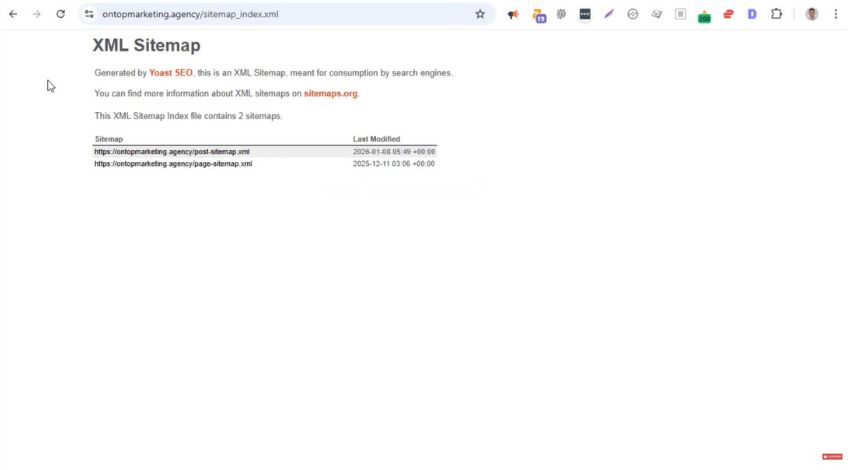
Copy the sitemap URL from robots.txt and paste it into your browser.
If it loads, that is a good sign the sitemap is accessible and you have not made a typo in the file path.
If it does not load, it usually means the URL is wrong, the sitemap is not where you think it is, or access is blocked somewhere.
Why This Is Worth Doing
A sitemap is a structured list of your pages that helps search engines understand what exists on your website and where it lives.
It is especially useful for new pages that do not have many internal links yet, plus orphan pages that are not linked from anywhere.
In both cases, a sitemap can increase the chance of those pages being discovered and crawled. It can also make crawling more efficient.
Search engines have limited resources, so when your sitemap stays updated, it gives them clearer signals about which pages are available and which ones have changed, which can encourage quicker recrawls.