

Google finally added annotations to Search Console, and it’s about time. This feature makes tracking changes significantly easier, which means you can finally stop guessing why your traffic spiked or tanked last month.
Here’s what you need to know about using annotations effectively, when to add them, how to set them up, and the situations where you should definitely hold back.
Why Annotations Matter For SEO
A wise man once wrote that SEO without proper tracking is just guesswork with a fancy name.
That wise man was me.
For years, tracking SEO changes meant spreadsheets, project management tools, and calendar notes scattered across different platforms. You’d make an update, mark it down somewhere, then months later when traffic changed, you’d have to dig through your notes to figure out what caused it.
Annotations change that completely.
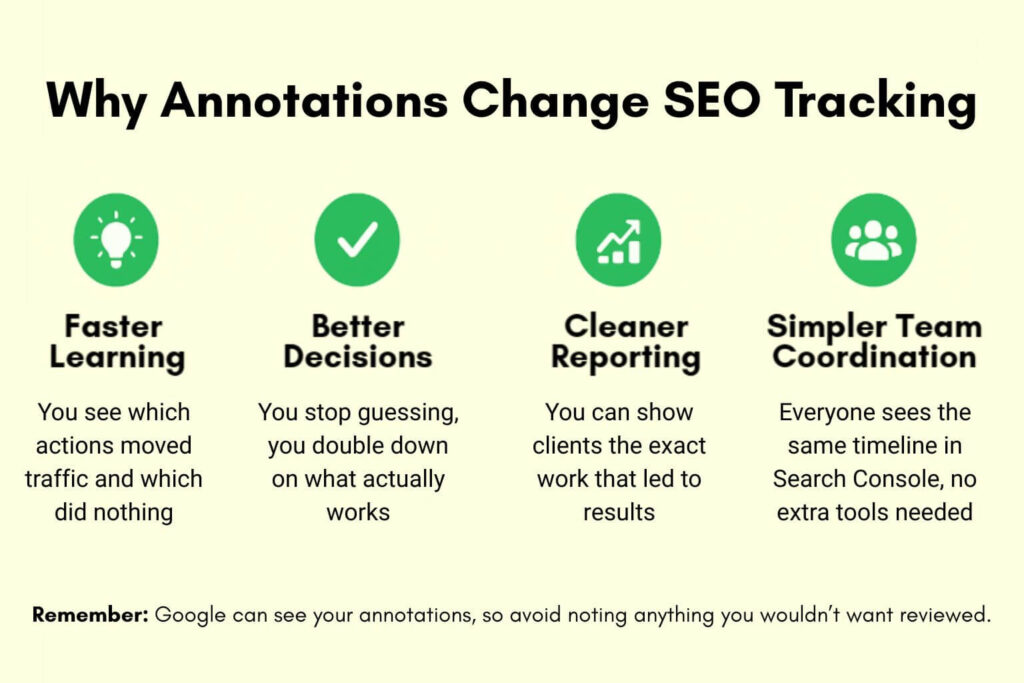
Now you can see everything in one place. Traffic peaks or drops appear on your Search Console graph with annotations showing exactly what you changed and when. No more cross referencing. No more digging through old notes. Just look at the graph, check the annotations before any traffic change, and you’ll see what caused it.
It’s the kind of feature that should have existed years ago, but now that it’s here, there’s no excuse not to use it.
When To Add Annotations
Add an annotation anytime you make a change that could potentially affect your traffic.
This includes:
- Content changes
Publishing new pages, removing old content, updating existing pages with fresh information. - Technical updates
Code changes, improving page load times, fixing Core Web Vitals issues, implementing structured data. - Site structure
URL restructuring, category reorganisation, navigation changes, internal linking updates. - Server issues
Downtime, hosting migrations, CDN implementation, security certificate renewals.
The goal is to document anything that might show up as a traffic change later. Even small tweaks can have unexpected impacts, so when in doubt, add the annotation.
How To Add Annotations (Step By Step)
Adding annotations is straightforward once you know where to look.
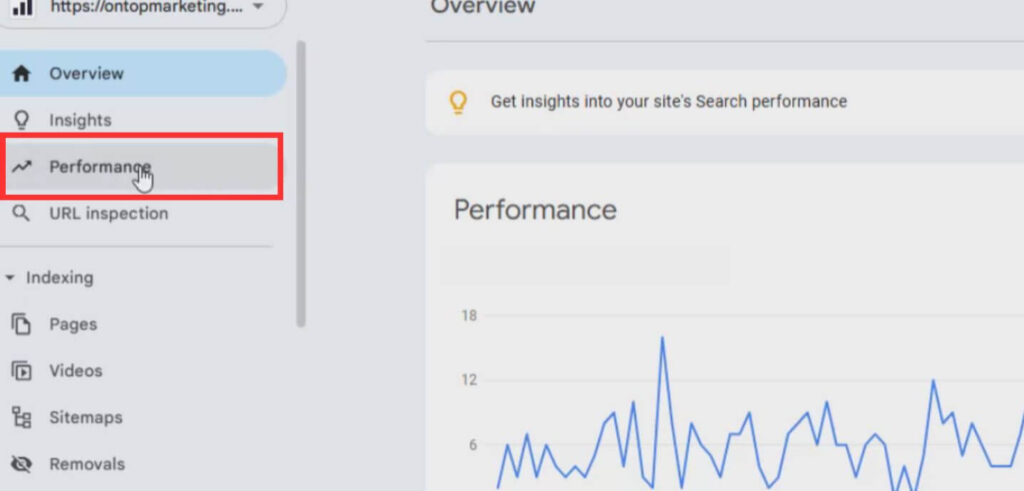
Step 1: Open Search Console performance
Go to Search Console and click Performance in the left sidebar. You’ll see your traffic graph.
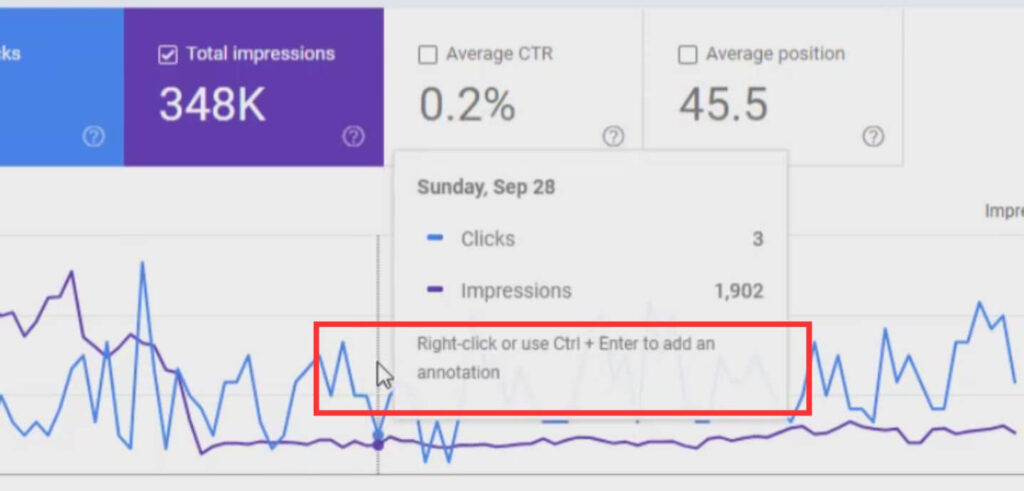
Step 2: Find your date
Locate the exact date you made the change. Right click on that date on the graph.
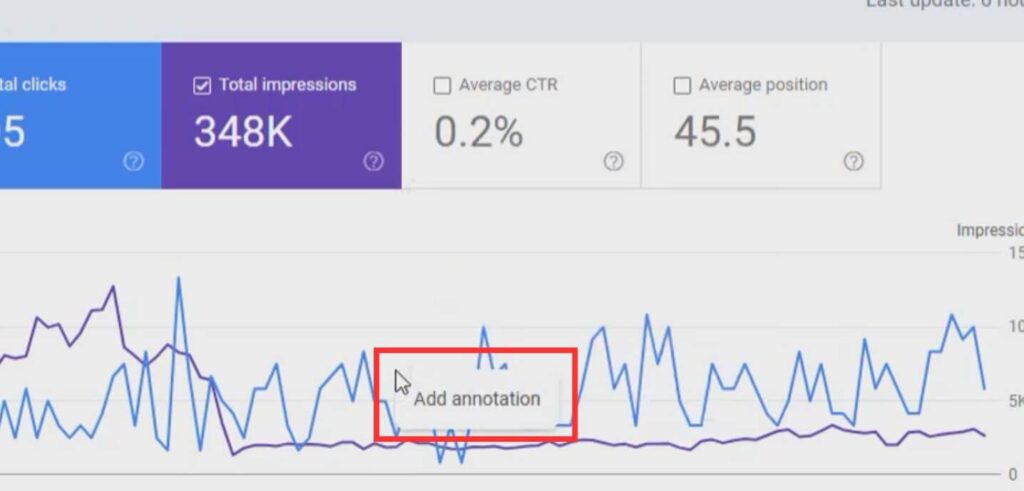
Step 3: Add your note
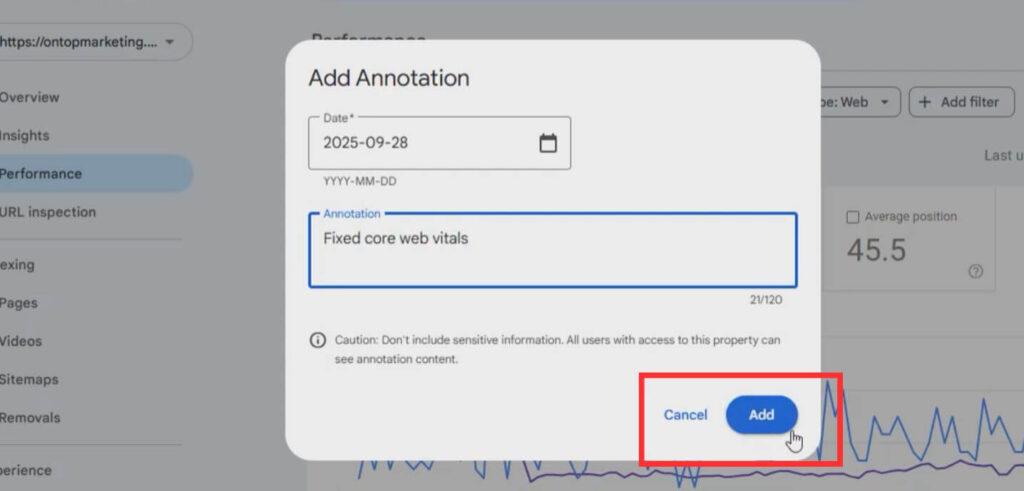
Click “Add annotation” from the menu. You get 120 characters to document what you did. Keep it clear and specific.
Examples:
- “Fixed Core Web Vitals on product pages”
- “Published 15 new service pages”
- “Removed 200 thin content blog posts”
- “Updated schema markup sitewide”
Step 4: Save it
Click Add. After a moment, you’ll see the annotation appear on the graph. Click it anytime to view your note.
The Date Picker Workaround
Here’s a quirk you need to know about.
The annotation tool can be sensitive to mouse movements, which makes selecting specific dates frustrating. There’s also a limitation where you can’t select the current day or sometimes the previous day using the standard method.
The workaround:
Right click anywhere on the graph and select “Add annotation”. Instead of trying to pinpoint the exact date by clicking, use the date picker at the top of the calendar. Select your date there.
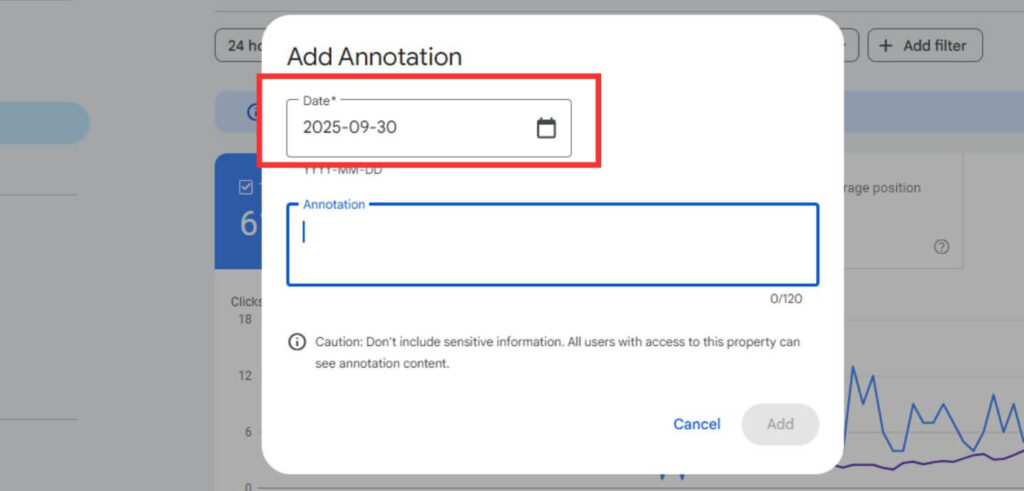
If you need to annotate today’s date (which the system normally blocks), click “More” then “Custom”. Open the end date calendar and you’ll be able to select the current date. Click OK, apply, then right click to add your annotation.
This little trick saves a lot of frustration when you want to document something immediately after implementing it.
How To Edit Or Remove Annotations
Made a mistake? Want to update your note? Simple fix.
To remove an annotation, click on it in the graph. You’ll see a rubbish bin icon at the top. Click that and it’s gone.
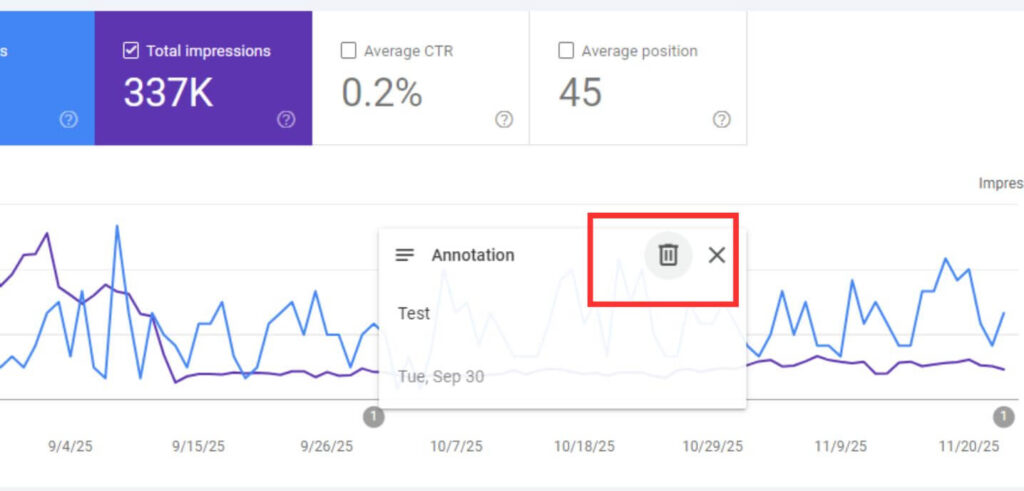
To edit an annotation, remove the old one and add a new one with your updated text. There’s no direct edit function, but the process only takes a few seconds.
Keep your annotations accurate. If you realise you documented the wrong date or described the change incorrectly, fix it. Future you will appreciate the accuracy when you’re trying to understand a traffic change six months from now.
When NOT To Use Annotations
Here’s something you should probably know: Google can see your annotations.
They’re not private notes tucked away in your own system. They’re data you’re sharing directly with Google about changes you’re making to your site. Which means Google will absolutely use that data to identify patterns and figure out which sites might be doing things against their guidelines.
So if you happen to be building links, using CTR services, or implementing any tactics that live in the grey area (or completely violate guidelines), just don’t mention it in your annotations. Simple as that.
Don’t put it in there and they won’t know. Or at least, they won’t have you documenting it for them.
Stick to the legitimate stuff in your annotations. Technical improvements, content updates, schema implementation, page speed fixes. Anything you’d be happy to discuss with a Google engineer over coffee? That’s fine. Anything you wouldn’t want them to know about? Keep that in your private spreadsheet where it belongs.
Why This Feature Changes SEO Tracking
Before annotations, connecting cause and effect in SEO was tedious.
You’d implement changes and wait. Weeks or months later, traffic would shift. Then you’d spend time trying to remember what you changed, when you changed it, and whether it could explain the results you’re seeing.
That gap between action and measurement created two problems.
First, it made learning slower. You couldn’t quickly identify what worked and what didn’t. Second, it made reporting messier. Clients want to know why traffic changed, and “I think we updated some pages around that time” isn’t a great answer.
Annotations solve both problems.
Now when traffic changes, you can immediately see what you implemented before that change. Correlation doesn’t equal causation, but having clear timing makes pattern recognition much easier. You can spot what’s working, double down on those tactics, and avoid repeating mistakes.
For agencies managing multiple clients, this is huge. You can finally keep detailed records without maintaining separate tracking systems for each site.
Why This Actually Matters
Search Console annotations are a small feature, but they represent something bigger.
Google is giving SEOs better tools to understand their work. That’s good for everyone. Better tracking means better decisions. Better decisions mean better results. Better results mean businesses that deserve to rank actually do rank.
For years, SEO felt like throwing things at a wall and hoping something stuck. Tools like annotations make the process more scientific. You can form hypotheses, implement changes, track results, and learn from outcomes.
That’s how SEO should work.
If you’re serious about improving your search visibility (or helping clients improve theirs), start using annotations today. They take seconds to add and could save you hours of confusion down the line.
Because in SEO, knowing what you changed and when you changed it isn’t optional anymore. It’s the difference between strategic optimisation and expensive guesswork.